Pipedrive automation: what the built-in workflows do, and where they stop
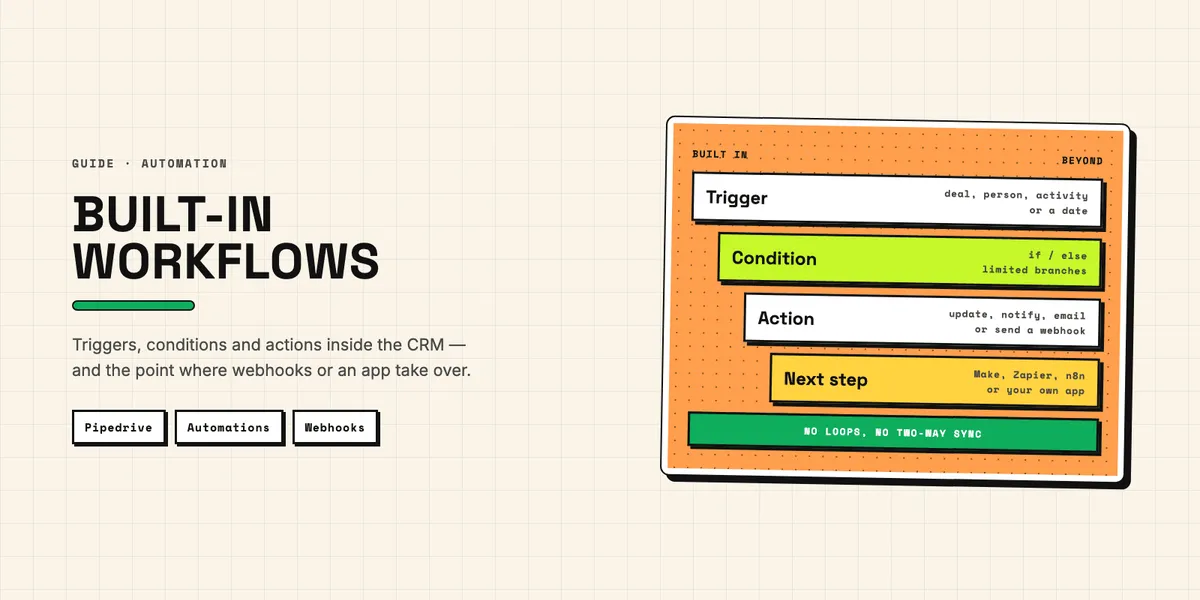
Pipedrive automation is a rule builder inside the CRM: when something happens to a deal, person, lead or activity, or when a date arrives, Pipedrive carries out up to ten actions for you. It is included from the Growth plan upward and is built for routine work such as follow-up activities, stage moves, internal notifications and templated emails. It is not an integration platform, and its limits are documented in more detail than most teams read.
This guide is for the person who sets up automations in a US sales team. It explains what the triggers, conditions and actions can do, how the limits differ by plan, how templates, sequences and Campaigns fit in, and where the built-in tool stops. The next steps after that — webhooks, automation platforms and your own app — get one section here and a full treatment in our map of the four ways to connect Pipedrive. All facts below come from Pipedrive's help center and developer documentation, checked on October 12, 2026.
What is Pipedrive automation, and which plans include it?
An if-then rule with a trigger and at least one action, available on Growth, Premium and Ultimate but not on Lite. Pipedrive's first-steps guide to automations describes the trigger as the "if" part and the action as the "then" part. You build them under Tools and apps → Automations, save them, and switch them to active.
Not everyone in the account may build them. By default only global admins can create automations; regular users need a permission set that allows adding automations and configuring automated email senders. That permission is broader than it sounds, as the email section below shows.
On cost, the entry point is a Growth seat. According to an archived copy of Pipedrive's pricing page from September 13, 2026, Growth costs $39 per seat per month and Premium $59, both billed annually; the live page blocks automated retrieval. Plan names changed in 2025: per Pipedrive's article on what changed in its plans, Essential became Lite, Advanced became Growth, Professional and Power became Premium, and Enterprise became Ultimate. Several help articles still use the old names.
Which triggers can start a Pipedrive automation?
Two kinds: an event on a record or a date in a field. Event triggers cover six record types — deal, person, activity, lead, organization and project — and fire when an item is added, updated or deleted. Date triggers cover deals, persons, activities and organizations and fire on, before or after a date field, at an hour and in a time zone you choose.
The date trigger is the more useful of the two for renewals and reminders. Pipedrive's article on date triggers allows up to 180 days before or after the date, and custom fields can be used as long as they are date fields.
What does not trigger an automation catches people out more often. Imports do not fire event triggers, except when an import updates or deletes leads; date triggers can still pick up imported dates. Items created through the API only start an automation if the automation was active beforehand and the new item matches its conditions exactly. Pipedrive's troubleshooting guide for automations gives the typical failure: a rule for deals "owned by me" never fires when an integration creates the deal under another user.
How do conditions decide whether an automation runs?
Conditions filter the trigger, and they come in two types that must match it. Pipedrive's article on automation conditions calls them passive and active. A passive condition describes a state, such as "deal stage is Proposal"; an active one depends on a change, such as "deal stage has changed to Proposal". An update trigger with only passive conditions may never run.
In practice, combine both: an active condition says what change you are waiting for, passive conditions narrow down which items qualify. The same article notes that moving a deal forward or backward both trigger the automation, so even a rule for "stage has changed to Proposal" also fires when a deal drops back into Proposal from a later stage. Date ranges cannot be used directly; you build a filter first and use "filter matches" as the condition, and the filter has to be shared if other users trigger the automation.
Beyond a single filter, the builder offers three ways to shape the flow. If/else conditions split an automation into paths. A wait-for-condition step pauses until something happens, for example a reply to an email, for at most seven days per step, and stops the automation if the time runs out. A delay step postpones the next action by a fixed time. Combined, a three-day delay followed by an if/else condition on whether the email was replied to gives you "create a call if the customer answered, otherwise send a reminder". That is useful, but it is not a programming language.
What actions can Pipedrive workflow automation take?
Mostly actions on Pipedrive's own records, plus email and a few outside services. According to the first-steps guide, an action can work on persons, organizations, leads, deals, activities, notes, projects and campaigns, send an email, or send a webhook. Beyond the webhook action, four integrations are built in as actions:
- Slack and Microsoft Teams for channel or chat messages
- Trello and Asana for cards and tasks
Each automation can contain up to ten actions, and they run strictly top to bottom: step three starts only after step two has finished. If the condition of an action is not met, that action and every step after it are skipped. The guide's own example is an automation that creates a deal while the account is at its open deal limit; the step fails and does not resume later, even when the deal is created by hand afterwards.
Email actions have rules of their own. They send only from mailboxes connected through Pipedrive's email sync, which is a decision in itself, as our guide to connecting Pipedrive and Gmail explains. Pipedrive's article on email senders in automations lists the options in the "Sender account" field: the item owner, the triggering user, the automation owner, a specific connected mailbox, or a Team Inbox on Premium and higher. The older first-steps guide still says emails always come from the automation's creator; the senders article is the current one. The two dynamic options send from that user's default mailbox, and the execution fails at the email step if the user has none connected. The same article warns that the permission to configure senders lets a user send from colleagues' accounts.
How many Pipedrive automations does each plan allow?
Between 50 and 250 active automations per company, depending on the plan, with tighter caps on branching on the lower tiers. The figures below come from Pipedrive's article on automation limits, last updated on October 12, 2026:
| Limit | Growth | Premium | Ultimate |
|---|---|---|---|
| Active automations per company | 50 | 150 | 250 |
| Actions per automation | 10 | 10 | 10 |
| If/else conditions per automation | 3 | 10 | 20 |
| Wait-for-condition steps per automation | 10 | 10 | 10 |
| Delay steps per automation (90 days in total) | 10 | 10 | 10 |
Deactivated automations do not count, and reaching the cap only blocks activating new ones; existing automations keep running. Frequency is capped across all plans: up to 10,000 executions per company and 5,000 per single automation within ten minutes. Automated emails are limited to 40 per minute for the whole company, on top of whatever Gmail or Outlook allow. When automations trigger each other in a loop, Pipedrive ignores the extra executions without listing them in the history.
One observation from our check on October 12, 2026: the help center does not agree with itself. The limits article lists ten wait-for-condition steps on every plan, while the article on the wait step still says three on "Advanced" and ten from "Professional" upward — the old plan names. Plan around the limits article, the most recently updated, and test any number you depend on.
Are templates, sequences and Campaigns the same as automations?
No. Templates are pre-built automations, sequences are a separate tool for one-to-one follow-up, and Campaigns is a paid email marketing add-on that automations can call.
Pipedrive's help article on automation templates lists 36 ready-made templates grouped into collections, such as following up on inactive deals or sending a campaign when a deal is won. A template opens a setup dialog, and the result behaves like an automation you built from scratch, so it can be edited later. The same article says both that you click "Save as draft" and that the automation is then active, so check the status in the list view after saving.
Sequences are built for the rep, not for the admin. The Sequences article describes linear flows of emails and activities for deals or leads, with up to 15 steps per sequence, available from Growth. Emails can be drafts that a rep sends by hand or be sent automatically, but each user has to authorize automated sending individually, per sequence. On capacity, the help center contradicts itself again: the limits article caps a sequence at 100 deals or contacts, while the Sequences article allows up to 500 deals or leads per sequence. Use a sequence when a rep should stay visibly in charge of the follow-up.
Pipedrive marketing automation, in the narrower sense, is the combination of automations with Campaigns. Campaigns is a paid add-on, but the automations that trigger it need Growth or higher, and only contacts with the marketing status "subscribed" can receive a campaign. Several of the templates above send a campaign when a deal is added, won, lost or moved to a new stage. If your marketing runs in an outside tool instead, the consent and opt-in questions are the ones we walked through for the Pipedrive and Mailchimp sync.
Where do Pipedrive automations stop?
At the edge of the record that triggered them and at the edge of Pipedrive. An execution works on the item that started it, on records linked to it, and on the records its own actions create. The help center describes no step that loops over a list, such as "every open deal of this organization", and no way to read data back from an outside system.
Five limits come up most often in real setups:
- No loops or lists. One trigger, one item. Bulk changes are possible only as many separate executions, and large bulk edits are stopped by the frequency limit.
- Few outside systems. Slack, Teams, Trello, Asana and a webhook. Accounting software, an ERP or a shop are out of reach without a Marketplace app, a platform or your own build.
- Shallow branching on Growth. Three if/else conditions per automation is enough for a split, not for a decision table.
- Short memory. Execution history is kept for 15 days, longer only for automations with delay steps, so a problem found three weeks later leaves no trace.
- Visibility. If the user who triggers an automation cannot see the items or the filter involved, the execution fails.
These limits mark what the tool was built for. A process that looks something up elsewhere, waits for an answer or decides across many records does not fit, and forcing it into ten actions produces a chain of automations nobody wants to debug.
What does the webhook action add, and what does it not?
A way to hand an event to another system, with your own conditions in front of it, but only in one direction. Pipedrive's article on webhook requests in automations describes the setup: a global admin first creates an "automation webhook" with an endpoint URL and optional credentials, and the automation then sends a POST, PUT or DELETE request with a body you build from Pipedrive fields or as raw JSON.
Three details from that article shape how you use it. Existing webhooks cannot be reused for automations, so you maintain the two kinds separately. The endpoint URL must end in "/", "&", "?" or "=", and a path can be added per automation. And any user can trigger automated webhooks, regardless of visibility permissions or admin status. If the endpoint is down or rejects the credentials, the execution fails and shows up as failed in the history. Some retrying happens: the troubleshooting guide lists a status "FailedMaxRetries", but we found no page saying how many retries there are or when.
The article describes no way to use the response in a later step, so the automation cannot wait for an invoice number from your accounting tool and write it back. The difference to regular Pipedrive webhooks matters too: a regular webhook fires on every create, change or delete of an object, with old and new values, while the automation webhook fires only when your conditions are met and sends only the fields you chose. How regular webhooks behave, including retries and bans, is covered in our developer guide to Pipedrive webhooks and custom fields.
When should you move to Zapier, Make, n8n or your own app?
When the job needs an answer or a lookup from another system, or has to reach a system that has no built-in action beyond a one-way request. The usual order is the built-in automation first, then a ready-made Marketplace app or an automation platform such as Zapier, Make or n8n fed by the webhook action or a regular webhook, and your own app on the Pipedrive API only when the rules are specific to your company.
An automation platform is the natural second stage. The automation webhook can start a Zap, a Make scenario or an n8n workflow, which can look up a customer in accounting, create an invoice and write the number back. Each of those follow-up calls draws on your company's daily API budget, on top of the platform's own task or operation fees, and how fast that budget runs out is worked out in our article on what the Pipedrive API costs you.
Your own app is the third stage, for logic no vendor will build for one customer. If the app creates its own webhooks, Pipedrive's documentation is contradictory: the scopes reference lists a narrower webhooks:full scope to create, read and delete webhooks, while the page on webhooks for apps still says the app needs the admin scope. Test whether webhooks:full is enough before you request admin, because only an admin can grant that scope when installing the app. If a ready-made app already covers your process, check its permissions and what it leaves behind first; our checklist for vetting apps and add-ons covers that.
What should you check before you rely on an automation?
Six things, most of which take minutes. Let a global admin own business-critical automations rather than whoever is leaving next quarter: when an owner is deactivated, their automations switch off, a transfer to a new owner is only possible to a global admin, and it leaves the automation inactive until someone switches it on again. Make sure every user who triggers the automation can see the items involved, and share the filters it uses, since executions fail on the triggering user's visibility. Prefer active conditions on update triggers. Test with one record before switching the automation on for the whole team. Check the history tab weekly, since it keeps executions for 15 days (longer only with delay steps). And note per automation what it does, who owns it and which other automations it may trigger.
Clean data helps more than clever rules. An automation that emails every new person runs twice for a duplicated contact. Our Duplicate Guard Lite flags duplicate people by email and company name so someone can decide which record stays; it does not cover organizations or deals.
Pipedrive automation stops where your process needs something back from outside Pipedrive. If you have reached that point and are unsure whether an app, a platform workflow or your own build fits, describe the process you want to automate and we will tell you which stage we would use.