Pipedrive and Gmail: three ways to connect them, and which one you actually want
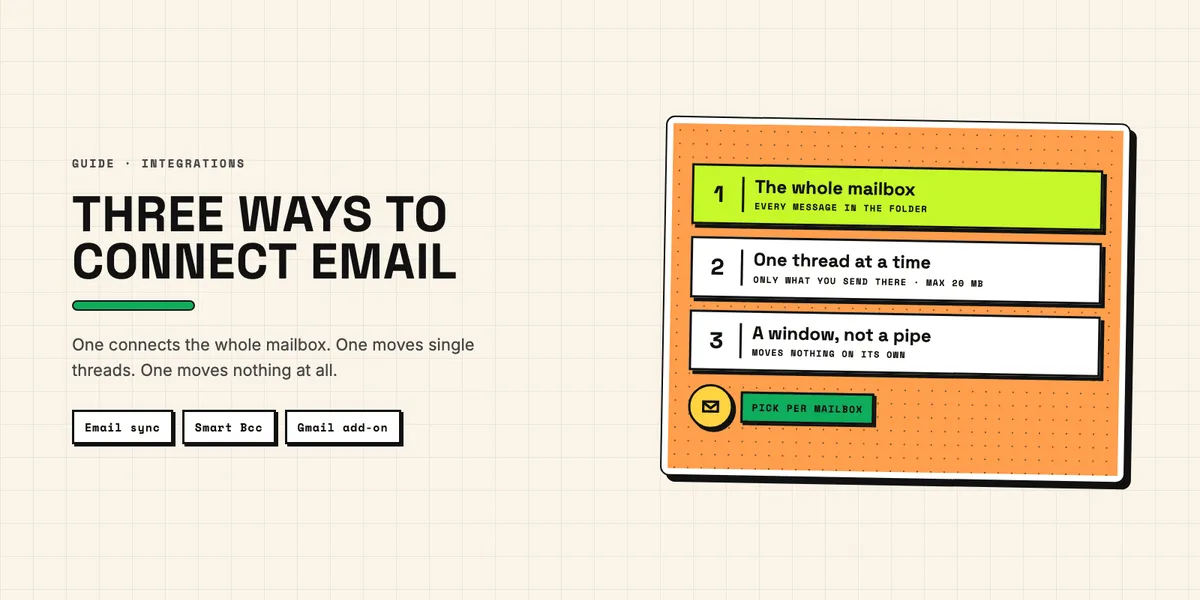
"Connect Gmail to Pipedrive" sounds like one setting. It is three different mechanisms with three different consequences, and teams routinely turn on the wrong one — usually the most invasive, because it is the one the setup wizard suggests first.
A Pipedrive Gmail integration can mean any of three things: full email sync, Smart Bcc, or the Gmail add-on. They can be combined, and for most teams the right answer is not the biggest of them.
The three routes at a glance
| Route | What it does | Available on | What lands in the CRM |
|---|---|---|---|
| Email sync | Connects the mailbox itself, two-way | Growth and higher | every message in the synced folders |
| Smart Bcc | You forward or BCC individual threads | all plans | only what you send there |
| Gmail add-on | Pipedrive panel inside Gmail | all plans | nothing by itself |
Read that last column again, because it is the whole decision. Email sync is a mailbox connection. Smart Bcc is a deliberate act per conversation. The add-on is a window into the CRM from inside Gmail and does not move mail anywhere on its own.
Email sync: the complete route, with the biggest footprint
Email sync connects the mailbox to Pipedrive so that conversations appear in the Sales Inbox, where they can be read, answered, and linked to deals, leads or projects. Per Pipedrive's email sync documentation, it is available on Growth and higher plans and works with Gmail and Google Workspace, Office 365 and Outlook, Microsoft Exchange over EWS, and any IMAP account.
Two settings matter more than the rest.
Personal or shared. A connected mailbox can be private to its owner or shared with colleagues. A shared sales@ inbox is genuinely useful and belongs in the CRM. A personal mailbox is a different matter: everything in the synced folders becomes visible in Pipedrive, and "everything" includes the messages nobody thought about — a colleague's sick note, a supplier's price list, a private conversation that happened to pass through the work address. Decide folder by folder, and tell the person whose mailbox it is what will be visible and to whom. In the EU this is not just courtesy; employee monitoring rules and works council agreements apply to exactly this.
Sending from an alias works — on Google accounts only. After the mailbox is connected, Pipedrive can send from a verified alias instead of the main synced address: under Personal preferences → Email sync, "Refresh aliases" pulls the aliases already set up in your Google account, and they then appear in the from field when you compose. The documentation is explicit that this is limited to Gmail personal and team accounts — not Outlook, not Exchange, not other IMAP providers. So a team that writes from firstname@ while the account is f.lastname@ has a clean answer on Google Workspace and no equivalent on Exchange.
One number to plan around: Pipedrive limits sending to 40 email actions per minute per company account, and your email provider's own limits apply on top. That is generous for a sales team writing individually and immediately relevant if you were planning to send sequences to a large list from inside the CRM.
Smart Bcc: the small route that fits most teams
Smart Bcc gives you a unique address, found under Settings → Email sync → Smart Bcc, derived from your company domain. Put it in the BCC field, or forward a thread to it, and the message appears in Pipedrive. It is available on all plans, per Pipedrive's Smart Bcc documentation.
The mechanics have four sharp edges, all documented and all worth knowing before you roll it out to a team:
Matching to a person is automatic; matching to a deal is not always. If the address belongs to a known contact, the message attaches to that person. It attaches to a deal only when that person has exactly one open deal. With two open deals, the message lands on the person and someone has to link it by hand — which, in practice, means it stays unlinked.
Unknown addresses create contacts. BCC a message to someone Pipedrive has never seen, and a new person record appears automatically. Used carelessly across a team, this is a steady source of half-empty duplicate records — the recruiter, the supplier, the colleague at a partner company, all now in the CRM as contacts. This is the most common way a clean database gets messy, and cleaning up afterwards is what Duplicate Guard Lite exists for.
20 MB is the ceiling, message plus attachments. A pitch deck can exceed it, and the failure is quiet.
DKIM or SPF must validate. If both fail, the message is not synced at all. If Smart Bcc works for everyone except one person, check their sending domain's DNS records before looking anywhere else.
For a team that wants deal history without putting entire mailboxes into the CRM, Smart Bcc is the better default. It has a real cost — people forget to use it, and a thread nobody BCC'd is a thread nobody can find — but it is a cost you can see, and the alternative is a privacy footprint you cannot easily reverse.
The Gmail add-on: context, not transport
The Pipedrive add-on for Gmail, distributed through the Google Workspace Marketplace, puts a Pipedrive panel next to the open message: contacts, deals, activities and notes, creatable and editable without leaving the inbox, plus scheduling links you can drop into a draft.
It requests permission to view your messages and to manage drafts and send mail on your behalf — necessary for what it does, and worth reading before approving, because it is the same category of access as email sync even though it feels smaller.
What it does not do is move conversations into Pipedrive on its own. Pair it with Smart Bcc and you get the useful combination: the CRM visible where the work happens, and only the threads you choose stored in it.
Which Pipedrive Gmail integration should you turn on?
Three situations, three answers.
A shared team inbox — sales@, info@, offers@ — belongs in email sync. It is company correspondence by definition, nobody has a reasonable expectation of privacy in it, and the value of having it complete is high.
Individual mailboxes in a small team are usually better served by Smart Bcc plus the add-on. You keep deal history, you avoid pulling in everything else, and you avoid a conversation with your works council that you did not budget for.
Individual mailboxes in a larger, process-driven sales team are the case where full sync earns its keep — pipeline reporting and handovers both depend on complete history — but only with folder scoping agreed in advance and the people involved actually informed.
Whichever route you take, two habits keep the result usable. Decide who owns the connection: a mailbox synced under one person's account leaves when they do. And check what the sync is creating, not just what it is showing — a Smart Bcc rollout across ten people will produce contacts you did not intend, and finding them in month one is a great deal easier than in month twelve.
If email is only the first of several systems you want joined up, the same questions come back in a bigger form: which system leads, what is copied where, and what the API budget allows. What the Pipedrive API costs you covers those, and the app catalog shows what does not need building at all.