Pipedrive QuickBooks integration: what syncs, what doesn't
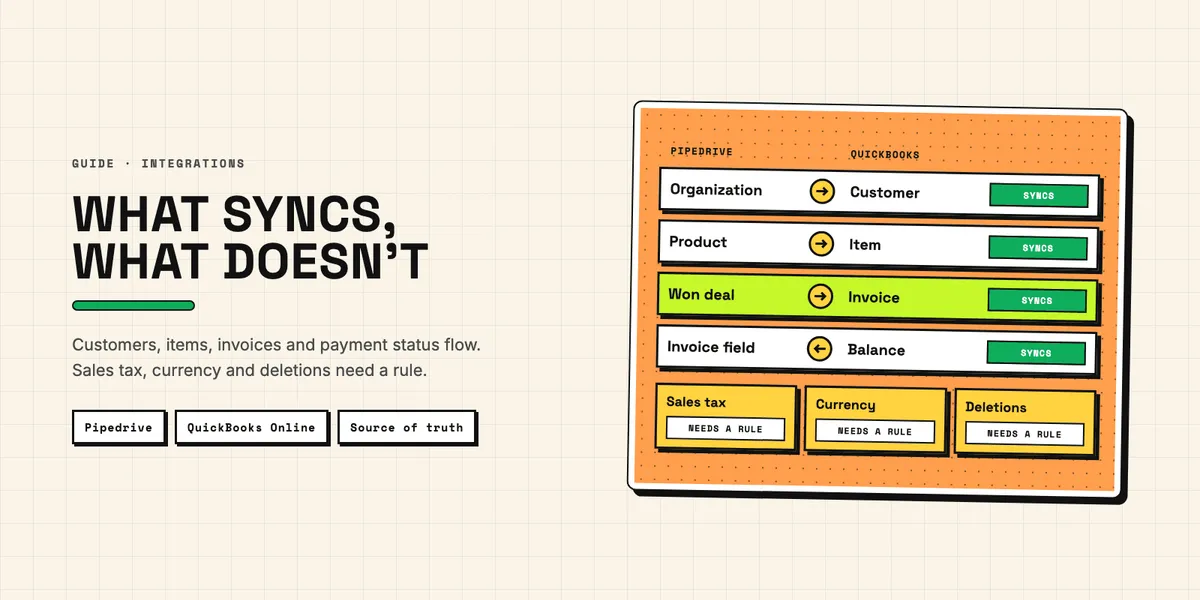
A Pipedrive QuickBooks integration promises one thing: a deal is won, and the invoice reaches QuickBooks without anyone copying a customer address. Every route delivers that, whether with one click on the deal or fully automatically. What decides whether the connection still works six months later is the rest: sales tax, currencies, partial billing, duplicate customers, deletions, and the question of which system is right when the two disagree.
This guide is for US teams that sell in Pipedrive and bill in QuickBooks Online. It walks through the ways to connect the two, the data that typically flows, where it breaks, and the error messages that show it. The facts below come from the documentation of Pipedrive, Intuit and the automation platforms, read on October 7, 2026; the recommendations built on them are ours. If you are about to add an app to your account, read what to check before you install an app as well; this article stays with the data.
Which ways are there to connect Pipedrive and QuickBooks?
Four: Pipedrive's own QuickBooks app, a third-party app from the Pipedrive Marketplace, an automation platform such as Zapier, Make or n8n, or an integration you build on both APIs. They differ less in features than in who decides what happens when the data does not fit — the app vendor, the person who built the automation, or your own code.
Pipedrive's own app is the narrowest. According to Pipedrive's QuickBooks help article, it works "with QuickBooks Online only" and lets you create an invoice from the Invoice tab of a deal, then shows its status back in Pipedrive: open, paid, voided, overdue or partially paid. It is invoice-driven and manual. Someone clicks "+ Invoice"; a won deal alone creates nothing. Third-party apps in the Marketplace go further. Some advertise two-way sync of estimates, invoices and payments, and at least one connects QuickBooks Desktop instead of Online. What they actually sync is listed on each app's page, and it varies enough that the page is worth reading line by line.
Automation platforms sit in between. Zapier's Pipedrive and QuickBooks Online page lists the building blocks most teams need: a "Deal Matching Filter" trigger in Pipedrive, which fires when a deal enters a filter such as "status is won", "Find Customer" and "Create Invoice" actions in QuickBooks, and a "New Paid Invoice" trigger for the way back. Make and n8n offer comparable modules. The fourth route, your own integration, means writing against the Pipedrive API and the QuickBooks Online Accounting API directly — full control, and every rule in this article becomes your code.
What does a Pipedrive QuickBooks integration typically sync?
Four pairs of records, and each of them usually runs in one direction only. Organizations and people become QuickBooks customers, Pipedrive products become QuickBooks items, won deals become invoices or estimates, and payment status travels back from QuickBooks to the deal. Nearly every route covers this core; the differences start at the edges.
| Pipedrive | QuickBooks Online | Usual direction |
|---|---|---|
| Organization, person | Customer | Pipedrive → QuickBooks, often only on first invoice |
| Product | Item (service, non-inventory, inventory) | either, but rarely both |
| Won deal with products | Invoice or estimate | Pipedrive → QuickBooks |
| Invoice status field on the deal | Invoice balance, payments | QuickBooks → Pipedrive |
The customer mapping is less obvious than it looks. Pipedrive's help article recommends billing the organization rather than the person, because "invoices are typically paid by the accounts payable department of a company", and taking the e-mail from the person record. A sync has to make the same choice, and it has to make it once: switching later creates a second customer in QuickBooks for the same company.
Products are the weak spot of the lightweight routes. Pipedrive's own app links Pipedrive products to QuickBooks items, but warns that "changes made with existing products on Pipedrive won't be reflected in QuickBooks and vice versa." A price change therefore has to be made twice, or the next invoice carries the old price. Payment status is the strong spot: QuickBooks keeps a Balance on every invoice, and Intuit's invoice reference states that "a Balance of 0 indicates the invoice is fully paid." Comparing it with the invoice total is enough to tell open, partially paid and paid apart.
Custom fields are where a mapping gets fragile. Pipedrive addresses each custom field through a randomly generated 40-character key that differs for every Pipedrive account, so a connector configured for one company cannot simply be copied to another. On the QuickBooks side, a deal ID or sales rep on the invoice needs a custom field, and defining those through the API is a premium feature. Up to three legacy text fields work on the free tier, and their names have to be set up in QuickBooks first. Check which fields you really need on the invoice before you choose a route.
Where does the sync break: tax, currency and partial billing?
At the three places where QuickBooks follows accounting rules that Pipedrive does not know. In US companies where automated sales tax is set up, the tax is calculated by QuickBooks, not taken from the deal. A customer's currency is fixed once it is set. And billing one deal in several installments is something the QuickBooks API does not model. Each of these turns a working demo into a failing sync.
Sales tax. Pipedrive stores tax as a percentage you type in, and a product can be priced tax inclusive, tax exclusive or with no tax. In the US, QuickBooks Online works the other way round. Intuit's guide to automated sales tax says that for US companies "amounts in transaction lines are always tax exclusive". US companies created after November 10, 2017 are enabled for automated sales tax; once sales tax is set up, QuickBooks determines the tax from the source and destination address.
The destination is the shipping address on the transaction; QuickBooks fills a missing one from the customer record, and if there is none, "the company address is considered as the destination address." A tax-inclusive Pipedrive price needs converting before it is sent, and where automated sales tax is set up, an organization without a shipping address is taxed as if the sale happened at your office. Calculating tax without creating a transaction, like creating your own custom fields, needs a paid API tier — see tiers, tokens and limits of the QuickBooks API.
Currency. Each Pipedrive deal holds products in one currency only, and products can carry a price per currency. QuickBooks is stricter. Intuit's multicurrency guide explains that multicurrency is off by default, "cannot be disabled once it's been enabled", and can be switched on only in the QuickBooks interface, not through the API. The customer's currency is set once: "Once configured, it cannot be changed." Pipedrive's troubleshooting page adds that the Simple Start plan "does not support multiple currency types." An organization that buys in US dollars this year and Canadian dollars next year needs a second QuickBooks customer with a different name.
Partial billing. A deposit plus a final invoice, or monthly milestones, is common in Pipedrive deals and awkward in QuickBooks. The invoice reference says that "only one link can be made to an Estimate" and that "Progress Invoicing is not supported via the API." Every installment becomes a separate invoice, and the integration has to remember which part of the deal each one covers. Incoming partial payments are less of a problem: they reduce the balance, and Pipedrive's own app shows them as "Partially paid."
Why do duplicates and deletions cause the most trouble?
Because the two systems have opposite rules about names and opposite rules about deleting. Pipedrive treats duplicates as something to merge after the fact, and users with the right permissions delete and merge records. QuickBooks insists on unique names and does not let you delete a customer at all. A sync that matches records by name, or mirrors deletions, loses data in both directions.
QuickBooks' customer reference states that the display name "must be unique across all Customer, Vendor, and Employee objects." A customer called "Acme Inc." collides with a vendor of the same name, and Pipedrive's troubleshooting page lists exactly that as the "Duplicate name" error. The fix is to match on IDs, not names: store the QuickBooks customer ID in a Pipedrive field after the first sync and look it up there. It also helps to clean duplicates in Pipedrive before the first run. Duplicate Guard Lite flags duplicate people by e-mail and company name instead of deleting them, so someone decides which contact is the real one. It reads only persons, not organizations; duplicate organizations still have to be found and merged in Pipedrive itself.
Deletions need a rule of their own. The customer reference documents create, read, query and update operations, but no delete; a customer is retired by setting it inactive. If that happens in the QuickBooks interface while the customer still has an open balance, QuickBooks creates a credit memo for the amount. The QuickBooks node in n8n reflects this, with create, get, get all and update for customers and no delete.
Pipedrive, on the other hand, announces deletions. Its webhooks guide sends a delete event with the record's last state, and when two records are merged, the losing one arrives as a delete event carrying merged_to_id. A sync that treats every delete as "deactivate in QuickBooks" will retire customers that were only merged. Check for merged_to_id first, and never delete invoices automatically: Pipedrive's own app has a delete option that removes the invoice "both from Pipedrive and QuickBooks", which belongs in the hands of whoever owns the books.
Which system is the source of truth?
For each field, exactly one. The workable split is that Pipedrive owns the sales side — deals, stages, contact persons, the products on a deal — and QuickBooks owns everything that touches the ledger: items and their income accounts, tax, invoices and payments. Customers sit in between: Pipedrive may create the customer once, and after that QuickBooks owns the billing name, address and currency. Data flows from the owner to the other system, never back.
This sounds like a formality, but it is what keeps a sync from "randomly" overwriting data. If both sides may change a customer's billing address, each change triggers an update in the other system, and the last writer wins — sometimes an outdated address from a webhook that arrived late. Writing the ownership down per field before the first line of mapping is cheaper than any conflict logic.
It also settles the question of updates after the invoice: once an invoice exists, a change to the deal value in Pipedrive should not silently change the invoice, because the customer may already have it. Pipedrive's own app follows the same logic for invoices it created: editing happens in QuickBooks, through "Open in QuickBooks." Its option to "update customer info on the provider's side" works the other way, pulling address, e-mail and tax ID into QuickBooks, so leave it off unless Pipedrive owns the address.
Two-way sync is still possible, just not for the same field. Payment status is the clean example of the reverse direction: QuickBooks is the only system that knows whether money arrived, so the balance flows to Pipedrive and nothing flows back. The deal itself stays a Pipedrive record; only an invoice-status field or a field that shows the open amount is written from outside.
What do the common error messages mean?
Most failures announce themselves with a short message or an obvious symptom, and most of those come from QuickBooks validation rather than from the connector. Pipedrive's troubleshooting page and Intuit's references explain the messages and symptoms that turn up first. Some point to data that one of the two systems rejects; others mark a limit of the connector, such as invoice numbers with letters or a retry without protection against duplicates:
- Duplicate document number: the invoice number already exists in QuickBooks.
- Invoice number not supported: Pipedrive notes that once you use a number with letters, such as "GRAL-2021", you have to enter every following number by hand; otherwise the next invoice fails.
- Duplicate name: the customer's display name is already used by another customer, vendor or employee.
- Currency error: the invoice currency differs from the customer's currency in QuickBooks, or the company is on Simple Start.
- Invoice sent to the customer unexpectedly: for US companies, the invoice reference says invoices are sent automatically when online payments are active, "Automatically send imported invoices" is switched on, the customer has a valid e-mail and card or ACH payment is enabled on the invoice. Test with a sandbox, not with real customers.
- A second, identical invoice: a retried request after a timeout; the QuickBooks API article linked above explains why a retried call can create a second invoice and how to prevent it.
Two failures go unnoticed by the people who use the sync. The first is a lost webhook. Pipedrive blocks a webhook for 30 minutes after ten failed first attempts, and events in that window are lost; it deletes it when there are "no successful deliveries on 3 consecutive days"; if your endpoint fails for three days in a row, won deals stop arriving without an error anywhere. The second is quota. In Pipedrive, every search for an organization or person costs API tokens, and a sync that searches before every write can use up Pipedrive's daily token budget for the whole company. If you build it yourself or run n8n with your own Intuit app, QuickBooks adds its own meter: looking up a customer before each invoice or polling invoice balances counts as metered reads, and on the free Builder tier, reads above the monthly allowance fail with error 429, as the QuickBooks API article linked above explains.
App, platform or your own build: how to decide
Choose by the exceptions in your billing, not by the feature list. If someone on the team creates each invoice from the deal anyway, Pipedrive's own QuickBooks app is enough; it handles several currencies once multicurrency is active in QuickBooks, and it reports payment status back. If you need estimates or automatic invoices on won deals, compare the third-party apps in the Marketplace with a platform chain as described below; for QuickBooks Desktop, look at the apps, because the Zapier and n8n building blocks shown here are made for QuickBooks Online. Your own build starts where your rules do.
An automation platform fits a clear chain with few branches: won deal, find or create customer, create invoice, write the invoice number back. Zapier's "Find Customer" searches by name or e-mail, so store the QuickBooks customer ID on the Pipedrive record as soon as it is found or created and use the ID from then on. The limits show early: n8n's QuickBooks node can only read items, not create or update them, so keeping products in step already needs its HTTP Request node and direct API calls. Once you need tax conversion, a currency rule per customer, installments or merge-safe deletions, every branch becomes a step someone has to maintain.
Your own integration pays off when those rules are specific to your company, or when you want to offer the connection to other Pipedrive users — then see what a Marketplace app takes to build. Whichever route you take, a Pipedrive QuickBooks integration stays reliable when every field has one owner, records are matched by ID, and deletions are handled on purpose. If you want help with the mapping or the build, tell us which fields should sync and we will tell you what to expect.